Create Zero-Night Groups in Stay
Stay is enhanced to allow users to create zero-night (day use) groups and event-only group bookings, enabling users to create, manage, and modify such group reservations effectively.
Previously, zero-night groups were not supported in Stay.
Zero-Night Group Configuration
To support this enhancement, a new field, Allow Zero Night Groups, has been added to the Groups tab of the Property Setup screen (All Settings ➜ General ➜ Property, Building, and Outlets ➜ Groups). This is a multi-select checkbox that displays the following options:
-
Groups: Users will be able to manually create zero-night groups only when this option is enabled.
-
Event-Only: Users will be able to manually create event-only groups only when this option is enabled.
An information icon added next to this field displays the following message when hovered upon:
Groups - When selected, zero-night groups can be created manually in the PMS.
Event-Only - When selected, event-only groups can be created manually in the PMS.
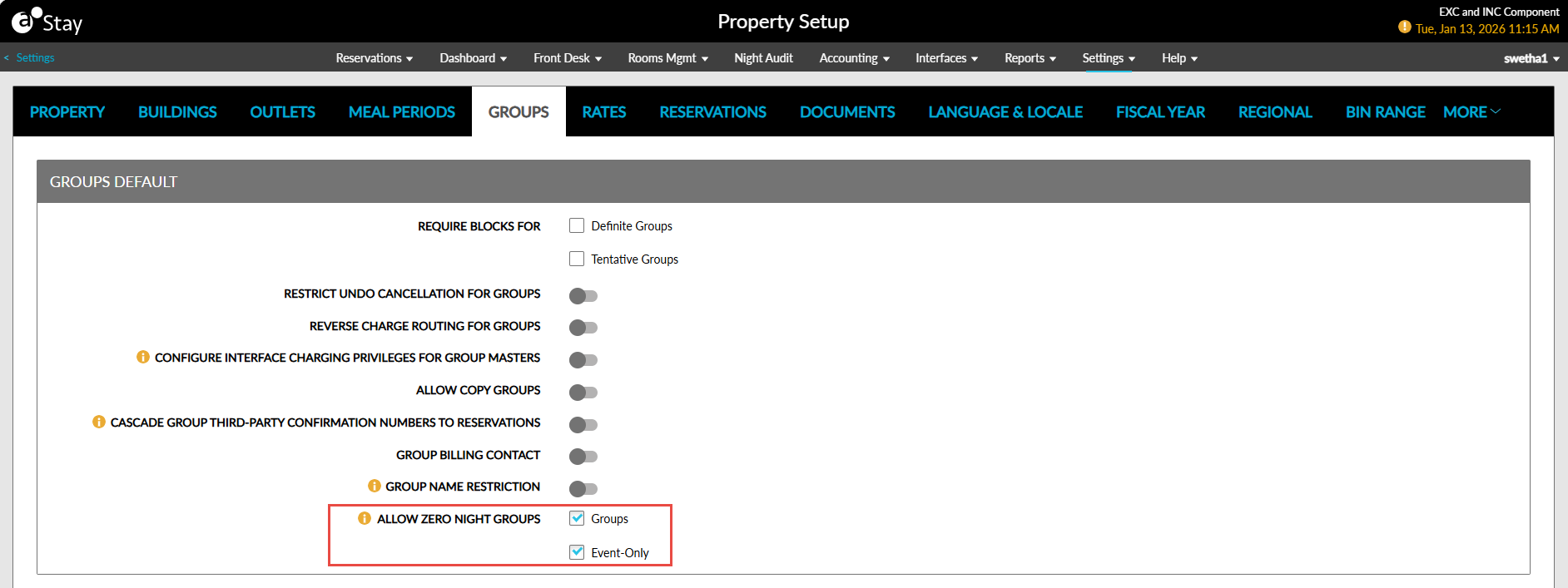
By default, the checkboxes are disabled for properties. When the checkboxes are not selected, users will not be able to perform the following actions:
-
Convert a multi-night group to a regular zero-night group
-
Convert a multi-night event-only group to a regular zero-night group
Permissions
The following existing permissions must be assigned to use this feature:
-
WriteGroupSetup
Create Zero-Night Groups
Users will be able to create zero-night or event-only groups when the Allow Zero Night Groups checkbox is selected. Users can create a group with the same arrival and departure dates. Zero-night groups can be created for future dates. Once same-day arrival and departure are selected, the arrival and departure shoulder date fields will be greyed out. Users can create events linked to zero-night groups in the Events section of the group.
Perform the following steps to create zero-night groups in Stay:
Navigate to All Settings ➜ General ➜ Property, Building, and Outlets ➜ Groups.
Select the preferred option for the Allow Zero Night Groups field.
Navigate to Profiles ➜ Groups ➜ Add. The Group screen appears.
In the Group Booking tab, enter the details for the mandatory fields.
Set the arrival and departure dates to the same calendar date.
Navigate to the Room Blocks tab.
In the Setup tab, add room blocks with the quantity of rooms set as 0.
In the Components tab, add charges and components applicable for the group.
Click Save to save the group.
Room Blocks for Zero-Night Groups
Users can block both bedded and non-bedded room types. The inventory will not decrease when the following actions are performed:
-
Rooms are blocked
-
Reservations are picked up
Components & Add-ons
Components and add-ons can be added to zero-night groups. The selected frequency (for example, First Night, Every Night) will apply only for that single night, since the group is limited to one calendar day.
Modify Options in Room Blocks
When the arrival and departure dates are the same for a group:
-
The Copy to all dates option in the Options menu in the Setup section of the Room Blocks tab will not be displayed.
-
The Copy to all dates & room types option will be renamed as Copy to all room type(s).
Indicator for Zero-Night Groups
A Day Use indicator will be displayed for the zero-night groups in the following areas:
-
Search ➜ Groups tab
-
Dashboard ➜ Group Rooms Control
This indicator will be displayed for the zero-night groups in the following statuses:
-
Inquiry
-
Prospect
-
Tentative
-
Definite
-
Cancelled
-
Turndown
Modify Groups
Users will be able to modify the group types as follows:
-
Regular (Zero-night) ↔ Regular (Multi-night)
-
Regular (Zero-night) ↔ Event-only (Multi-night)
-
Regular (Zero-night) ↔ Event-only (Zero-night)
-
Event-only (Multi-night) ↔ Regular (Zero-night)
-
Event-only (Zero-night) ↔ Regular (Zero-night)
All supported conversions between these group types are allowed when the feature is enabled.
Copy and Link Groups
Users can copy zero-night groups along with regular groups. Users can link or unlink zero-night groups to/from regular groups.
Create Waitlist/Inquiry Records
Users can create waitlist/inquiry records for zero-night groups when the arrival and departure dates are the same. When the duration of stay is modified, the group will be removed from the record.
Create Reservations Using Rooming List
Record Details
Users can add staged records with the same arrival and departure dates. Users can import rooming list with same-day dates for zero-night groups. Reservations can be created using staged records.
When the Day Use Reservation feature setting is turned off, the Add and Import Rooming List buttons will be disabled for the zero-night groups.
Bulk Update
Users cannot update the arrival and departure dates for the following:
-
Zero-night group reservations
-
Rooming list
Data Purge
Zero-night groups follow the same data purge process and schedule as regular groups.
When users add routing rules to zero-night groups, the routing rule’s valid-on dates will remain within the group’s arrival and departure dates for both regular and event-only groups. Users can also continue to collect the deposit amount for the zero-night groups as per the existing functionality.
A record is created in the following areas when zero-night groups are created or modified in Stay:
-
Group History
-
Audit Log screen
Book Function Rooms for Zero-Night Groups
Stay is enhanced to support zero‑night groups (event‑only groups) in the function room booking workflow. Users can now create or associate zero‑night groups when booking event/function rooms, with defined rules for group selection, creation, and modification.
When booking a function room (Reservations ➜ Book a Function Room ➜ Group Details):
-
When the start and end date are the same, users can search and select a zero‑night (event) group.
-
Zero‑night groups appear in the group selection list only when the event duration is exactly one day, that is, when the start and end dates are the same.
-
Users will be able to create a new zero‑night group directly from the booking screen.
-
The created group will automatically use the same start and end date, representing a one‑day event.
When a function room booking is associated with a zero‑night group, the user will not be allowed to modify the start date or end date. When the user attempts to extend the duration, the zero‑night group association will be automatically removed.